
Campus Network Router Connection with Web Authentication
Requirements
Due to the device quantity limitations of campus network, I wanted to use the campus wired network to connect my own router to remove device quantity restrictions, and implement so-called hardware VPN, where traffic is forwarded through the router to a proxy server, so that devices in the network formed by this router don’t need to start VPN software, saving some trouble.
Difficulties and Solutions
Campus network is different from home network, requiring web
authentication to connect. Initially, I thought I could just buy a
ready-made router (ASUS TUF AX3000) and connect it for authentication,
but it turned out that the authentication interface wouldn’t pop up. So
I bought a soft router R2S (essentially a microcomputer) and installed
OpenWrt system as
the upper-level router, because it’s essentially an embedded Linux
system with command-line tools, and I can use the curl
command to send HTTP requests to the campus network authentication
interface (HUST uses 192.168.50.3) to achieve login. As for VPN, I just
need to configure the subscribed proxy server address in the soft router
software. Yes, it’s essentially still software VPN, but it’s handled by
the gateway.
Process Demonstration
Equipment Preparation
One router, one soft router, two network cables, one computer.
Using Network Packet Capture to Get HTTP Request Content Value for Campus Network Authentication
First, connect one end of a network cable to the campus wired network
port, and the other end to your computer. Access the campus network
authentication interface through a browser, preferably with WiFi
disabled. Enter your account and password in advance, but don’t
click login. 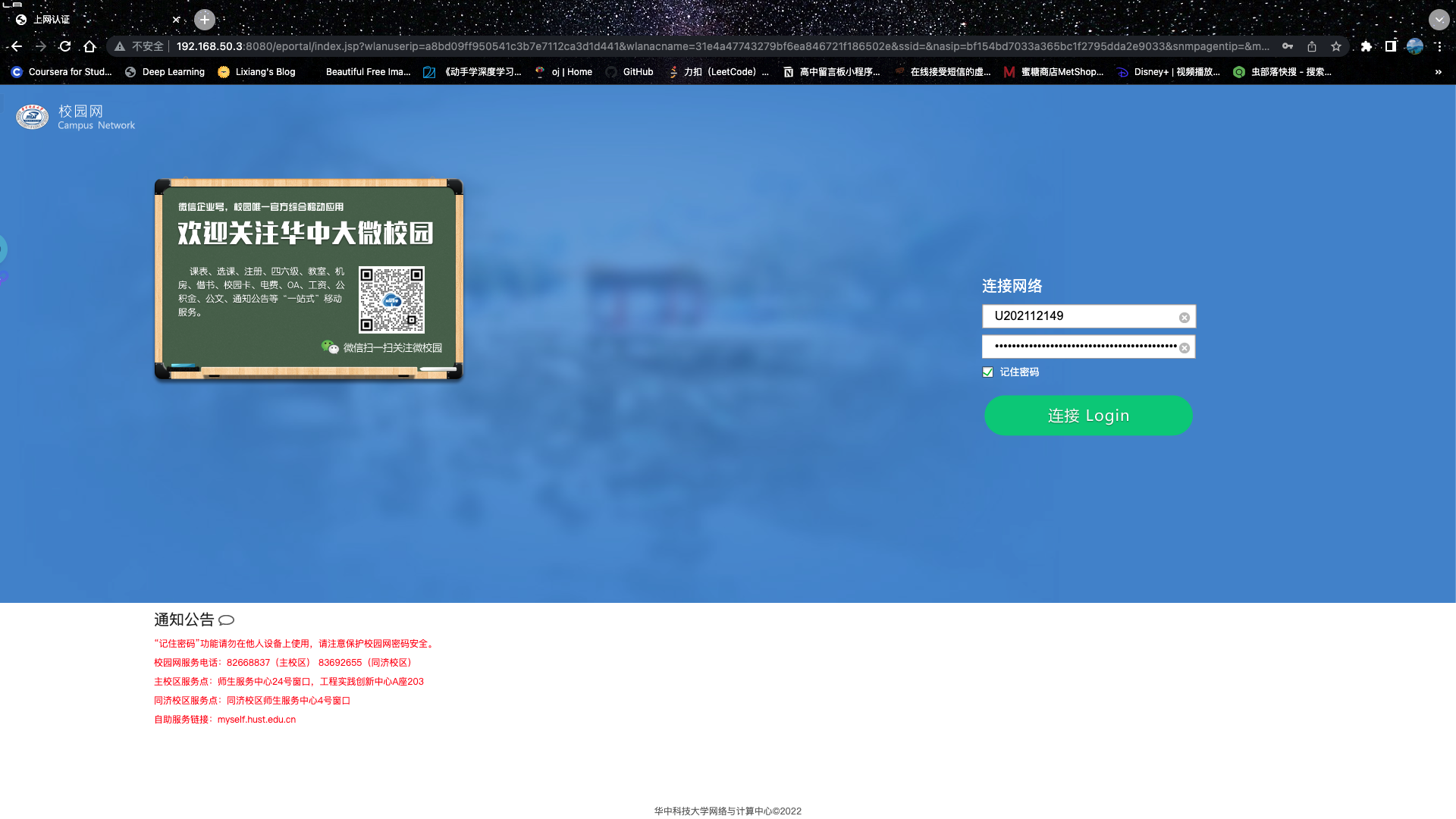
Enter Developer Mode
Press F12 to enter the browser’s developer mode, take a general look,
and understand the webpage’s logic, specifically the login function 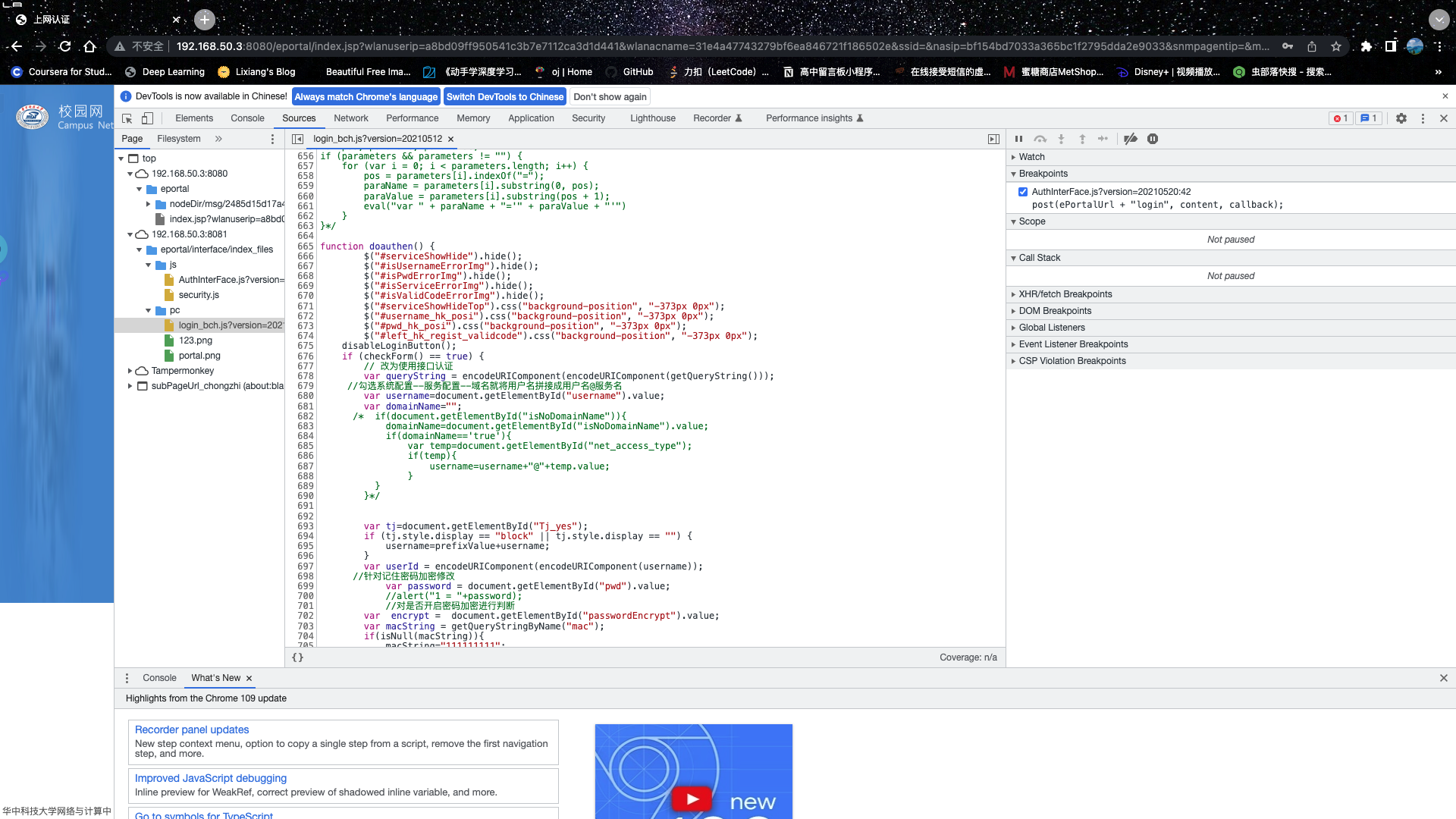
Set Breakpoint at POST Location
Just like debugging code normally. 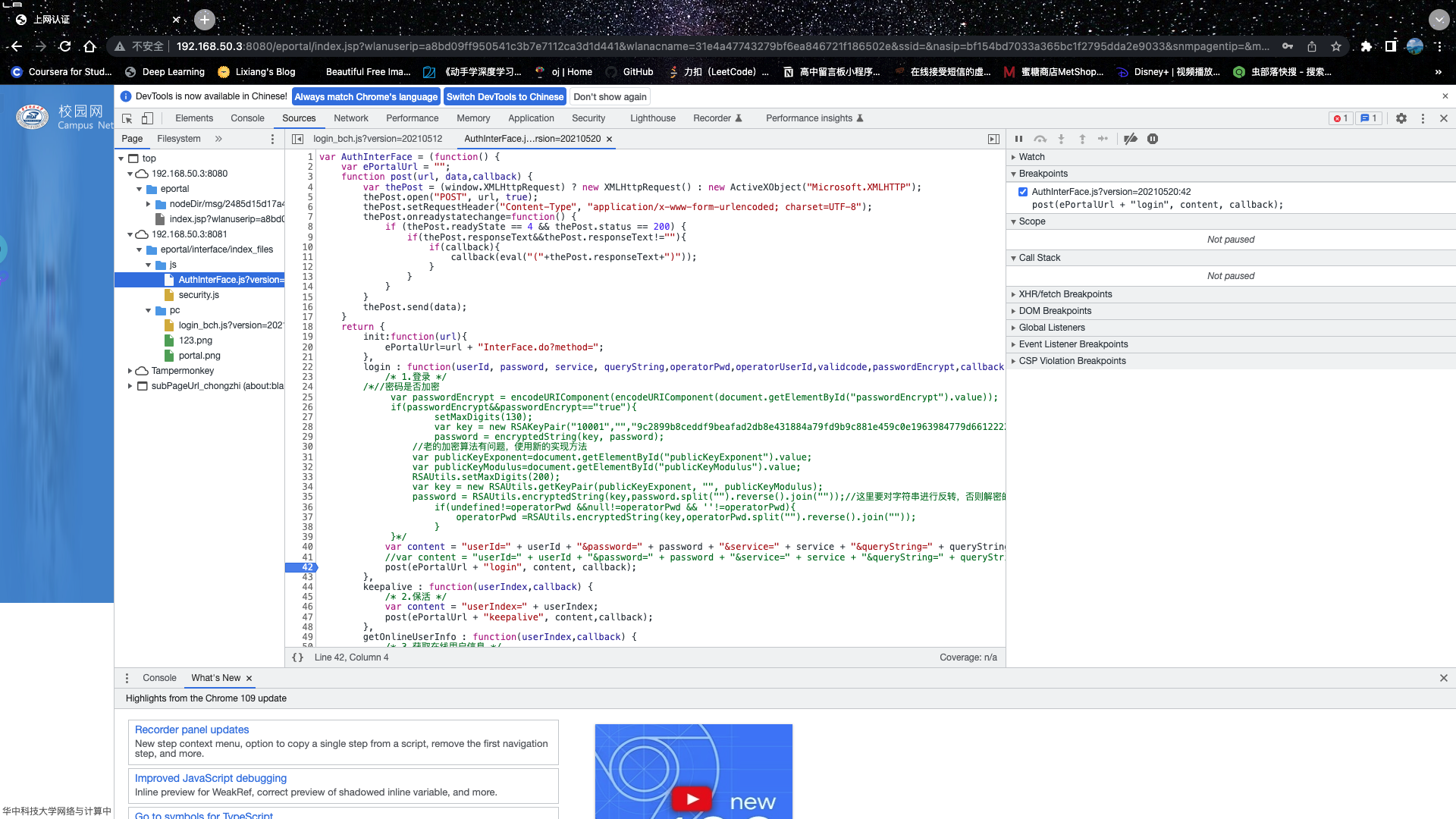
Click Login to Get Content Value
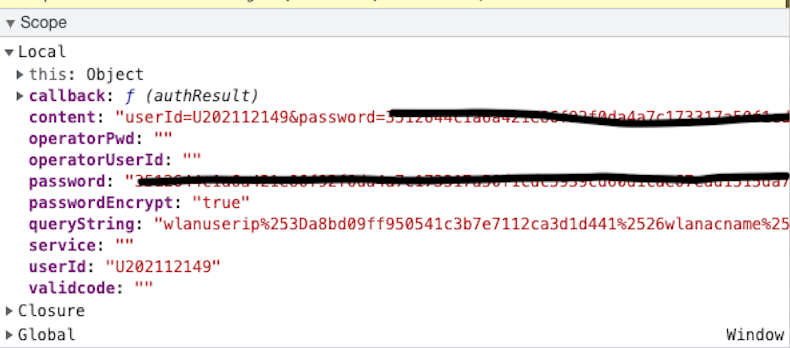
Use curl Command to Send Request
Write a shell script, or don’t write one at all. 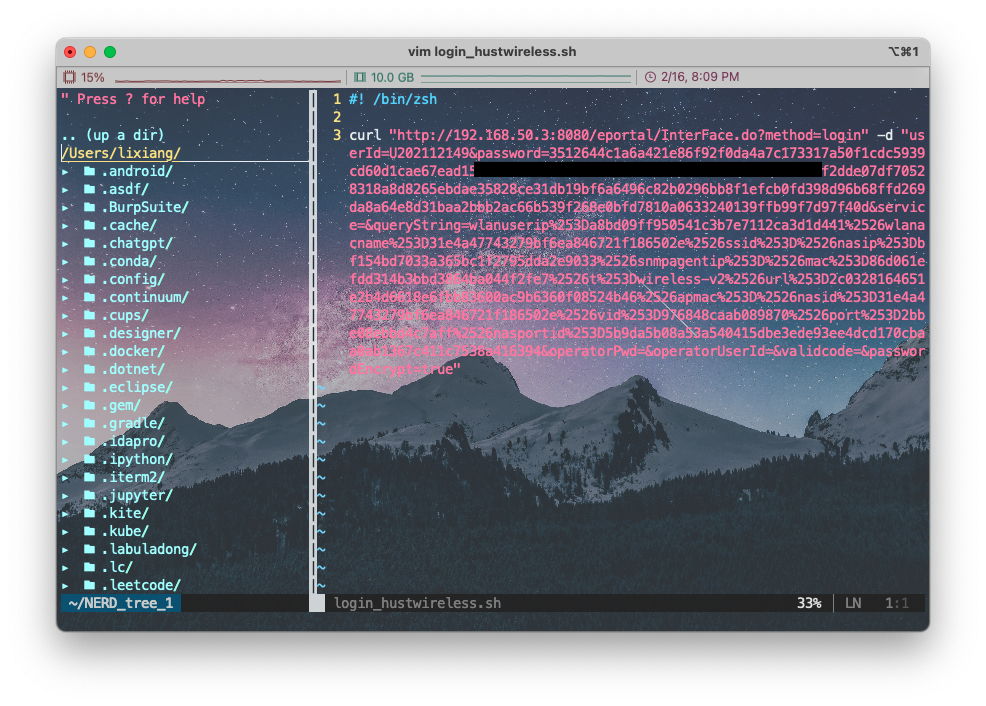 After using the chmod command to give it execution permissions, execute
the script. If the return value is “success”, it means the command
executed successfully and completed campus network authentication; if
not successful, repeat the content acquisition operation, as I also
failed the first time. ## Configure Soft Router
After using the chmod command to give it execution permissions, execute
the script. If the return value is “success”, it means the command
executed successfully and completed campus network authentication; if
not successful, repeat the content acquisition operation, as I also
failed the first time. ## Configure Soft Router
Install OpenWrt System
Since there are many open-source options on GitHub, the effects should be similar, so you can choose any one. Most soft routers bought on Taobao come pre-installed. If you have a completely new machine, refer to the video below to install the OpenWrt system.
Access Soft Router Backend
Insert the TF card correctly into the soft router and ensure the sys
indicator light on your soft router is normal.
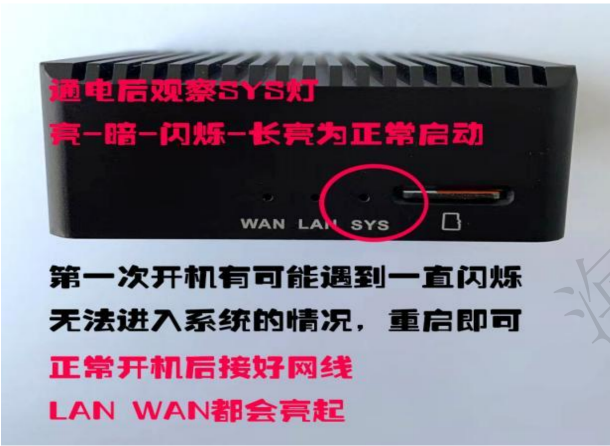
Connect one end of a network cable to the campus wired network port
and the other end to the WAN port of the soft router. Connect one end of
another network cable to the LAN port of the soft router and the other
end to your computer. At this point, the computer and soft router are on
the same local network. Access the soft router’s backend through its IP
address (this is usually provided by the seller; if not, you can check
the gateway’s IP address or disable DHCP for manual assignment) in the
browser and log in with username and password. 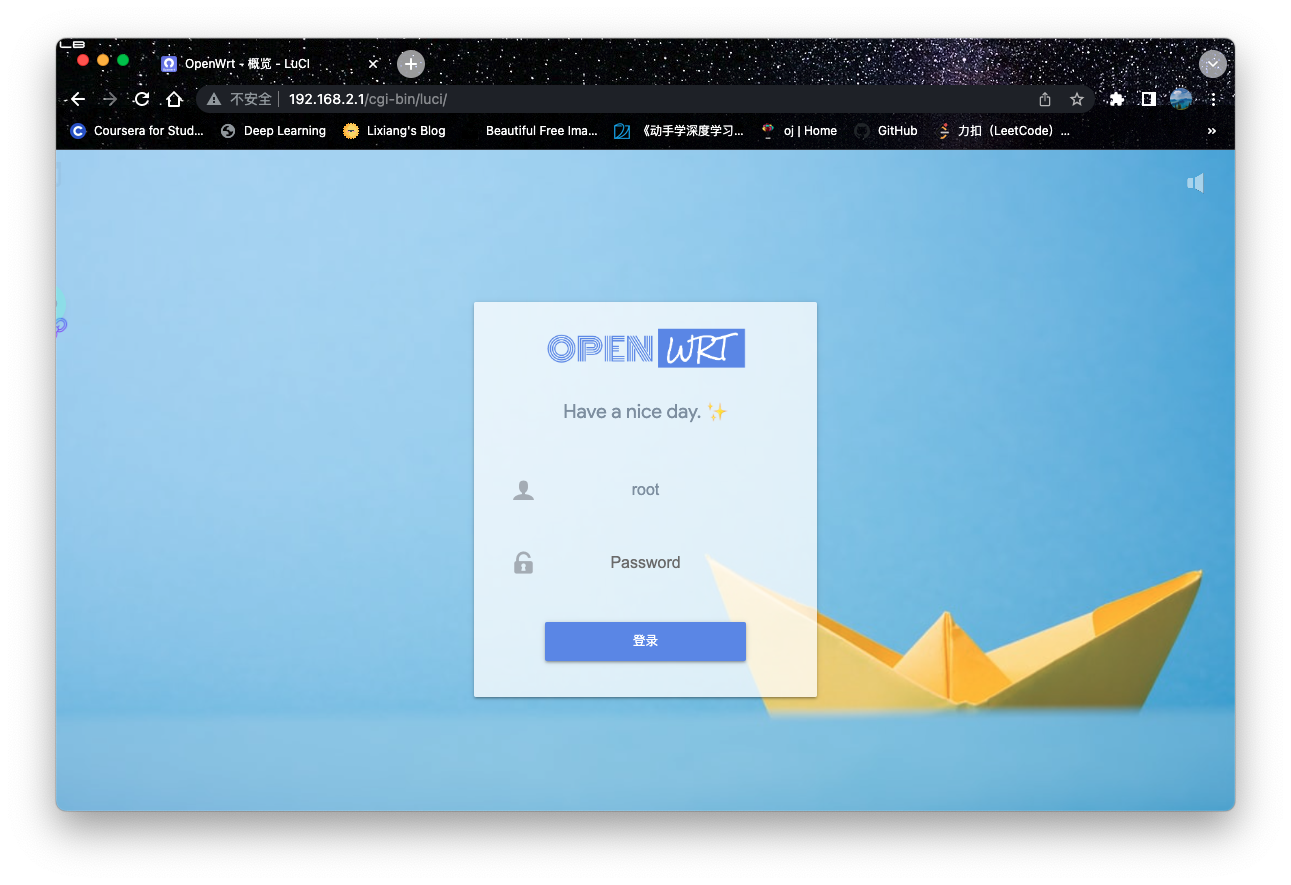 ### Using curl Command in Command Line Access the soft router’s command
line tool and use the curl command written above to perform campus
network authentication. It’s best to try pinging Baidu to see if it
works.
### Using curl Command in Command Line Access the soft router’s command
line tool and use the curl command written above to perform campus
network authentication. It’s best to try pinging Baidu to see if it
works. 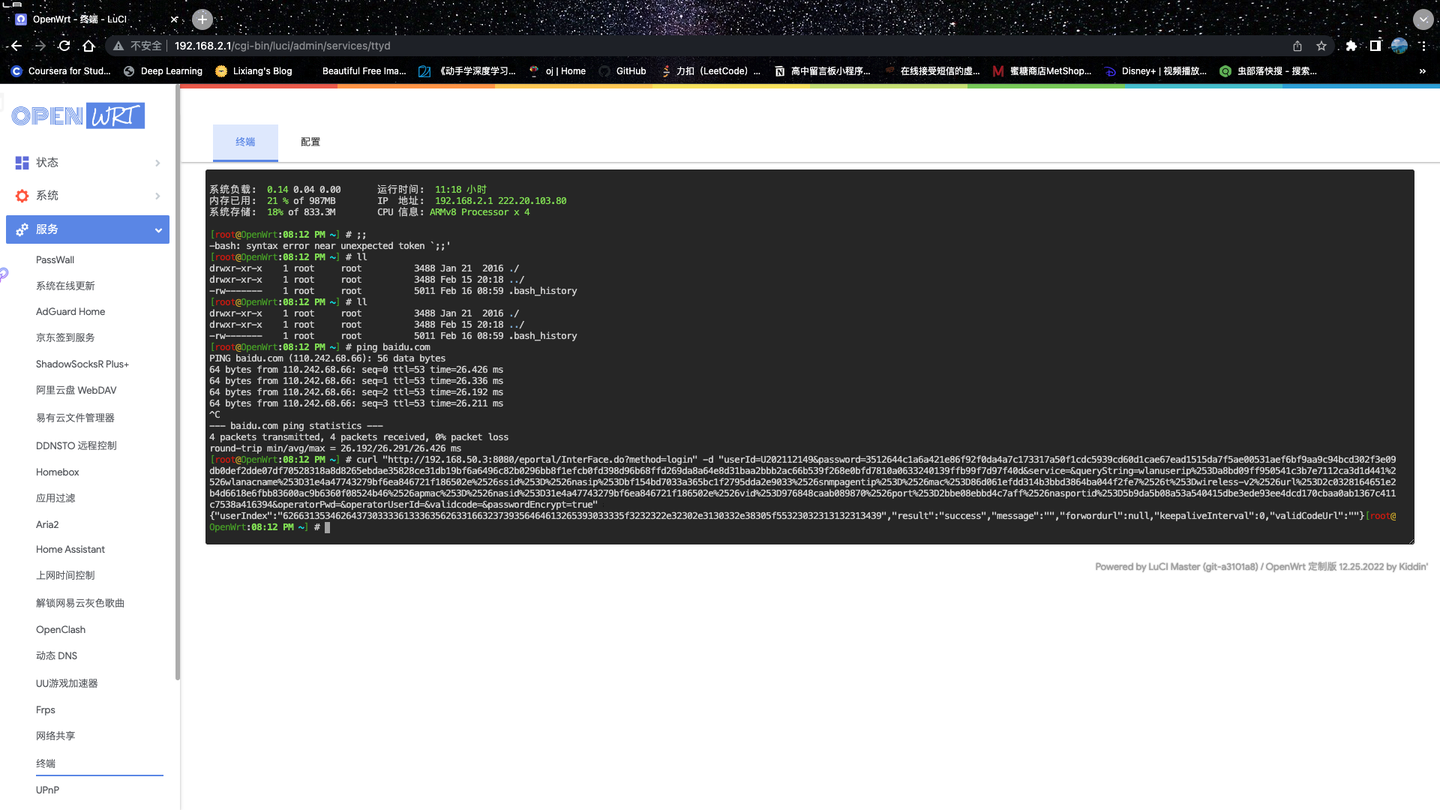
Configure Internet Access
I use OpenClash, which is built-in software. You can use any proxy
software, then configure it like on other devices by entering the
subscription URL. 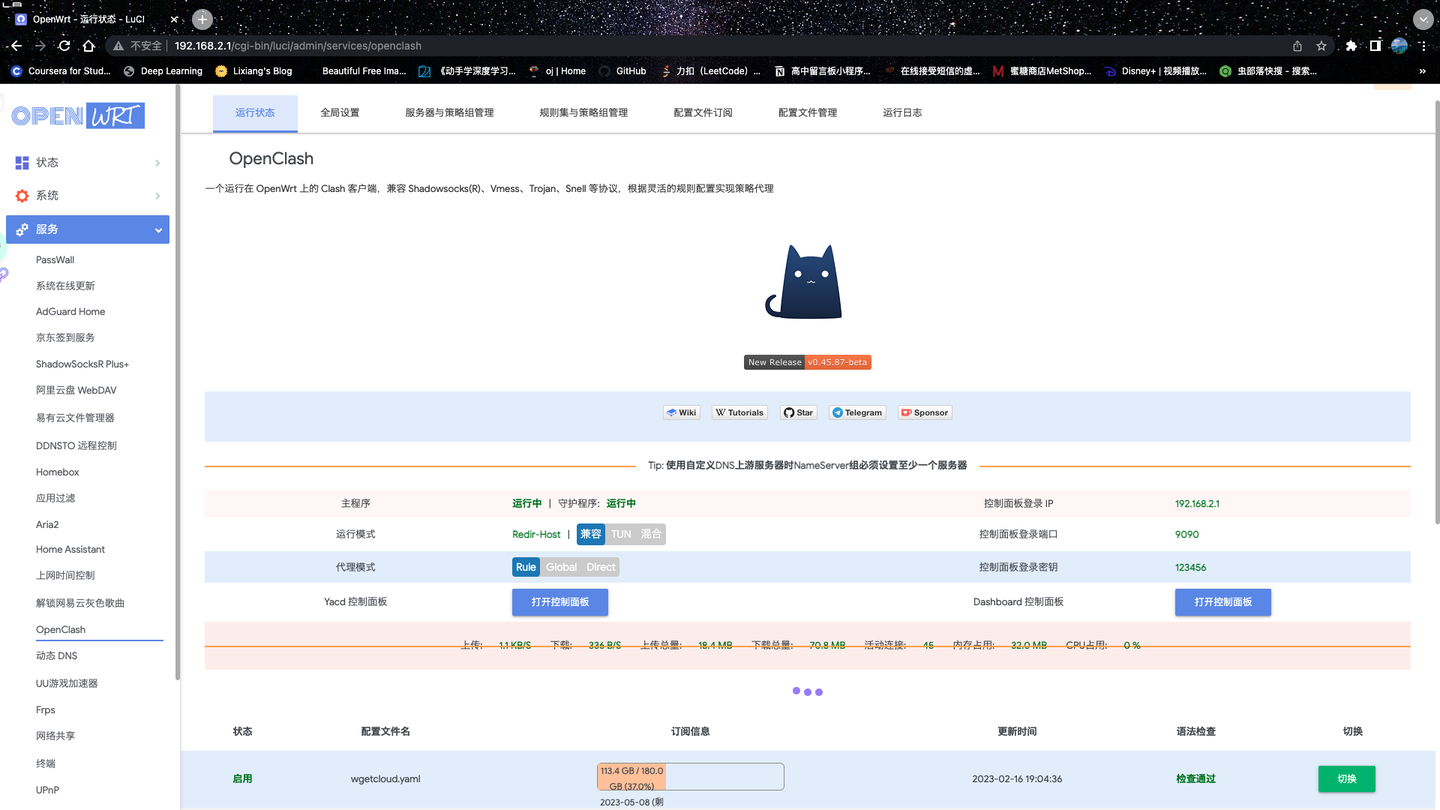
Configure Hard Router
Since soft routers cannot send wireless network signals like regular routers (at least my entry-level machine cannot), you need to use a real router to send WiFi signals or provide more LAN ports for wired network connections. My ASUS router serves this purpose. Focus on the cable connected to the soft router’s LAN port, and change the end that was connected to the computer to connect to the router’s WAN port. Of course, you can also connect it to the LAN port, but you need to use the router’s AP mode. The difference is that when connected to the WAN port, the soft router becomes the upstream router, and you cannot access the soft router’s backend by entering its IP address (at least with my current technical level); when connected to the LAN port, the soft router remains on the same local network as our devices (at this point, the router acts like a switch with wireless functionality).
I connected it to the WAN port, then used any device that can access the internet to connect to the WiFi signal and complete the initial router setup based on the information provided on the back of the router, such as name and password. This process is relatively simple and won’t be elaborated on further.
Final Notes
Due to the limitations of school power and network outages causing devices to disconnect at night, we can’t repeatedly log into the soft router backend to connect to the campus network every time. However, it seems that after enabling seamless authentication, it can automatically reconnect even after being disconnected for a while. I’m still planning to write an automatic login and logout script when I have time to comply with school regulations.
The above method indeed works for my situation, and the router I bought itself supports flashing. Actually, for general home networks that don’t require authentication, you don’t need a soft router. Some ASUS router series support flashing Merlin firmware, which is essentially an OpenWrt system adapted for ASUS routers. Since I haven’t found a better solution yet, I can only maintain the current situation. The soft router serves more as a side router, specifically providing ad-blocking services for the TV box at home, or streaming acceleration, and most importantly, enabling internet access to watch foreign streaming software.
Reference Article Implementing Campus Network Web Authentication under OpenWrt Huazhong University of Science and Technology Campus Network Auto-Reconnection